Attendance Settings
In attendance settings, you can configure your leave types, holidays, Late permission policies, shifts, and attendance reports configurations
Leave Types
Leave settings allows you to create different leave types with specific to different set of filters like department, designation, employee, gender and marital status.
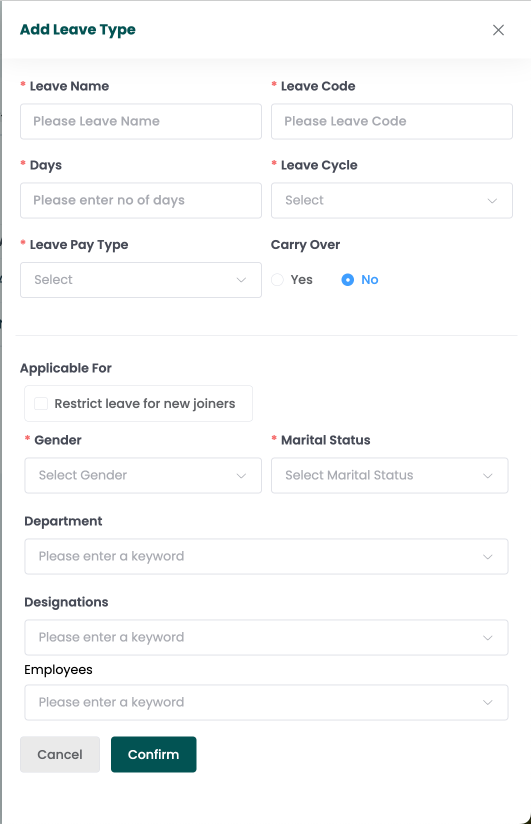
Creating leave type
- Go to settings > Attendance > Leave Types
- Click on Add Leave Type
- Fill the required fields like name, code etc...
- You can also set the leave types to be applicable for with the above filters
- Click Confirm
Managing leave type
- Go to settings > Attendance > Leave Types You will be able to view the list of available leave types.
- Click on the edit icon against the particular leave type, to modify it.
- Click on the delete icon against the particular leave type, to delete it.
Holiday Master
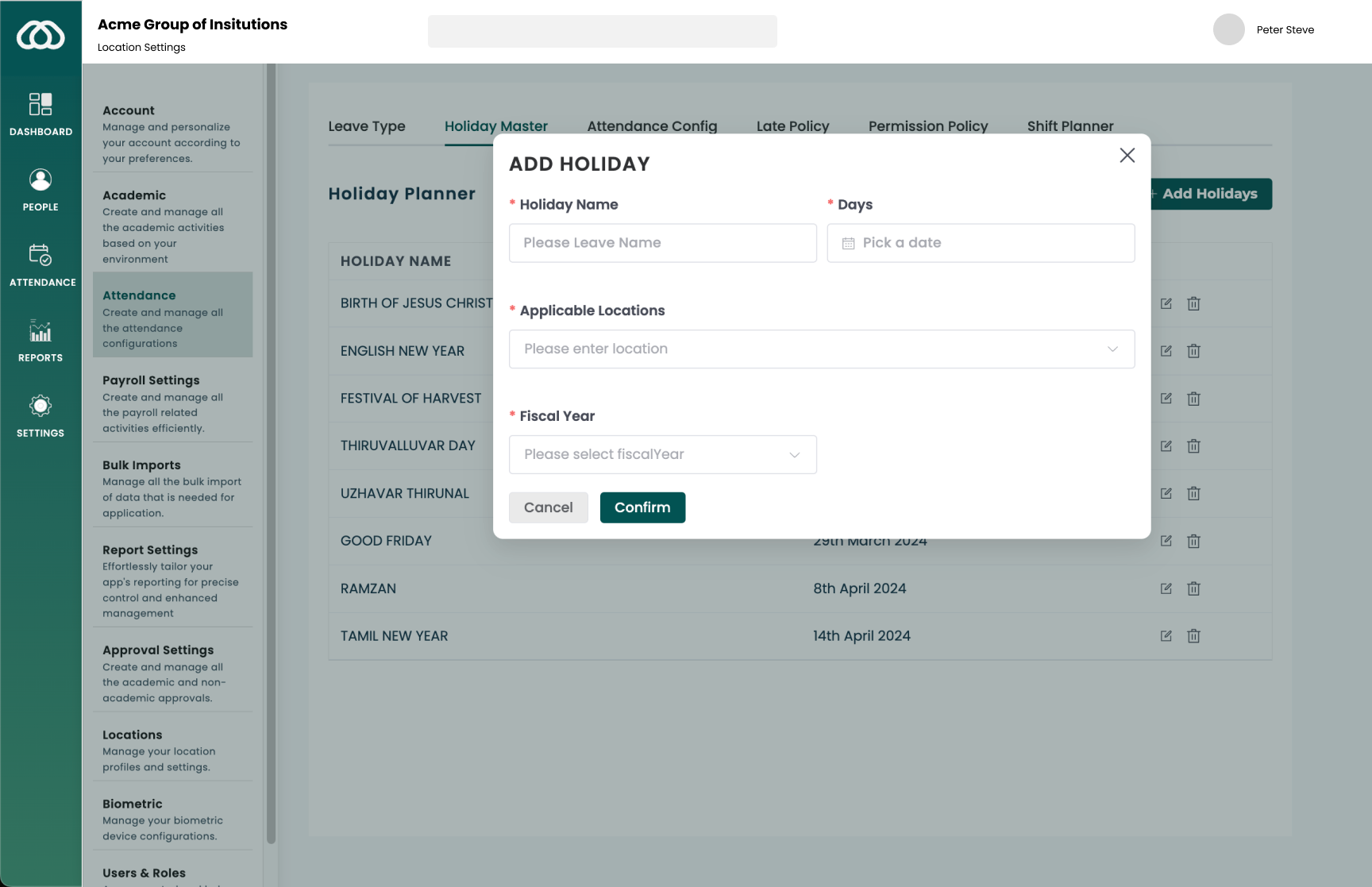
Holiday Master setting allows you to create organization approved leaves, which will be mapped to leave application, salary calculations etc..
- Go to settings > Attendance > Holidays
- Click on Add Holiday
- Fill the required fields like name, code etc..
- You can also set the leave types to be applicable for with the above filters
- Click Confirm
LC Permission Configuration
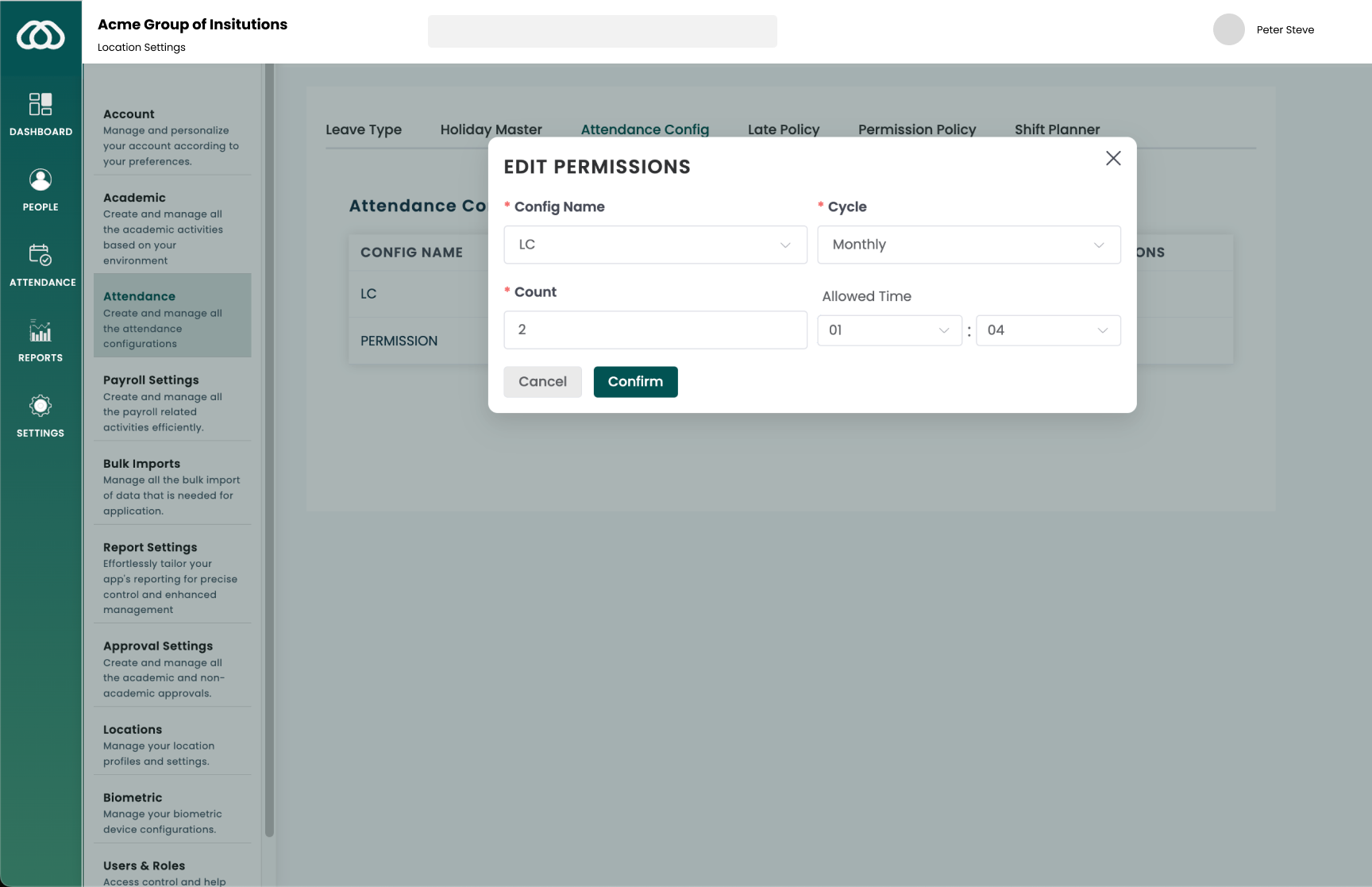
LC permission configuration allows you to setup the count and timings of the Late and permissions an employee can avail based on cycle.
- Go to settings > Attendance > LC Permission Configuration
- Edit Configuration for LC and Permission
- Fill the required fields like cycle, count
- Click Confirm
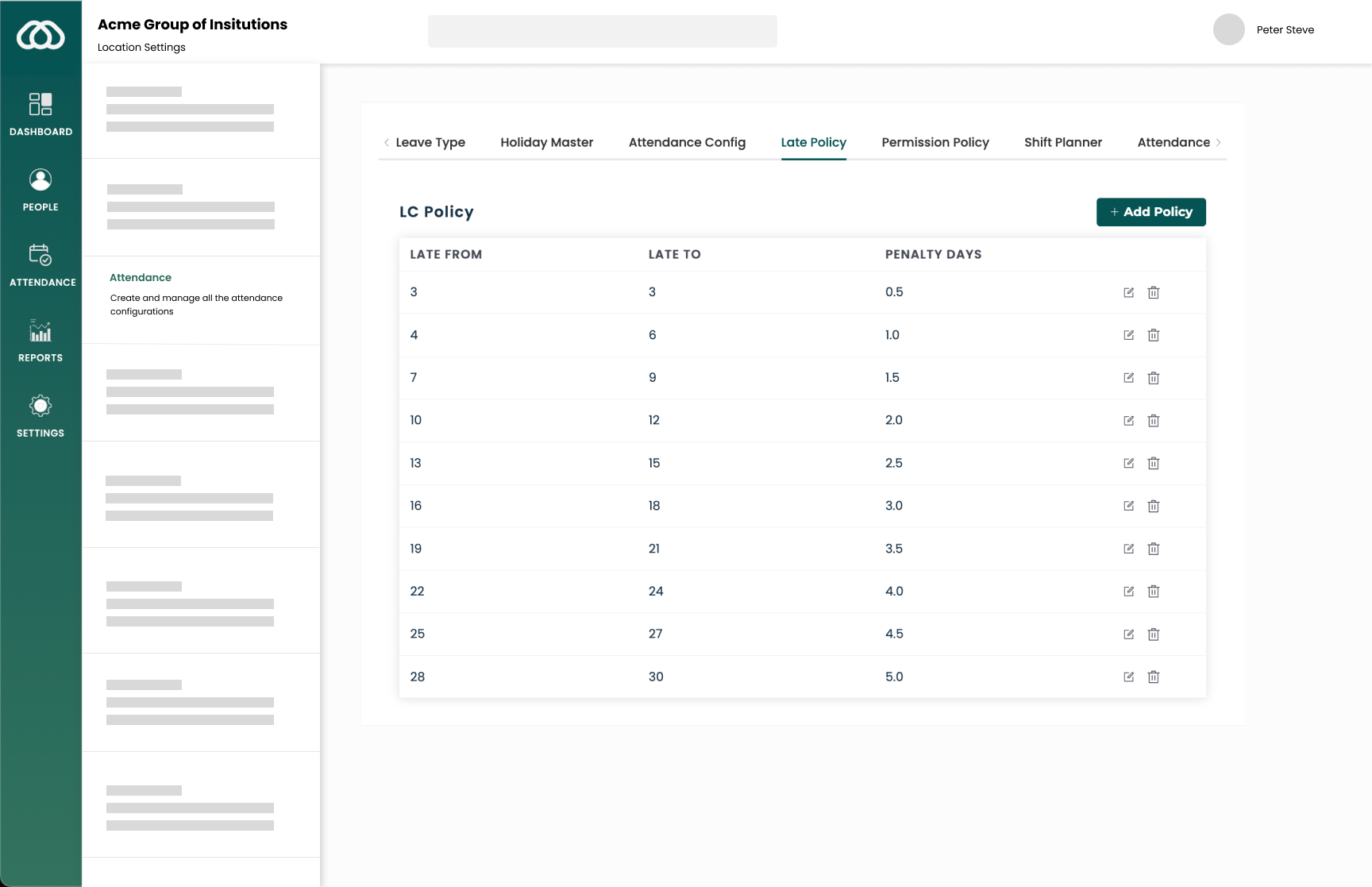
Late Policy
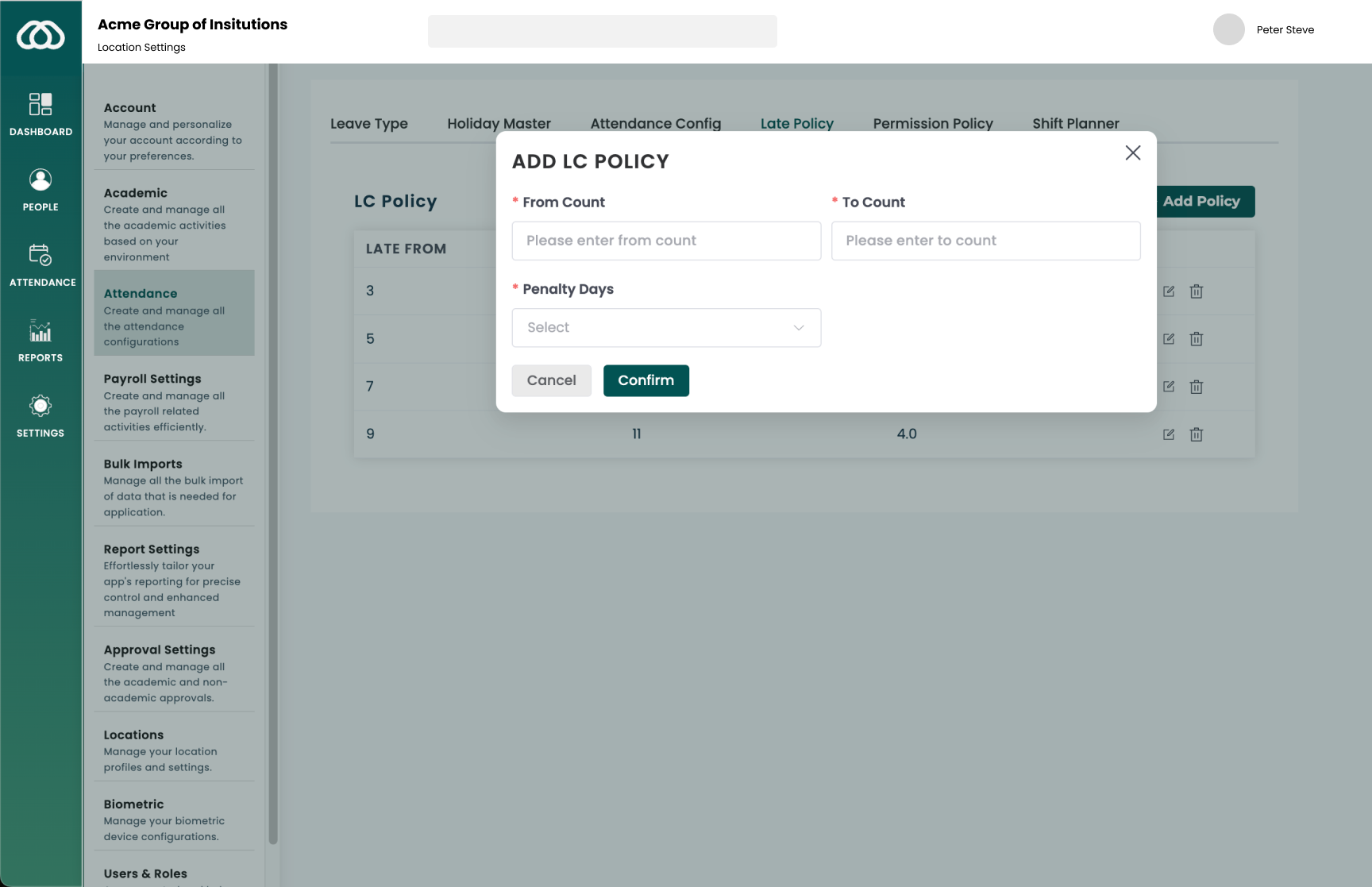
Late policy allows you to configure late penality deductions based on employees late frequency.
- Go to settings > Attendance > Late Policy
- Click Add Policy
- Fill the required fields like from count, to count, penality days
- Click Confirm
Permission Policy
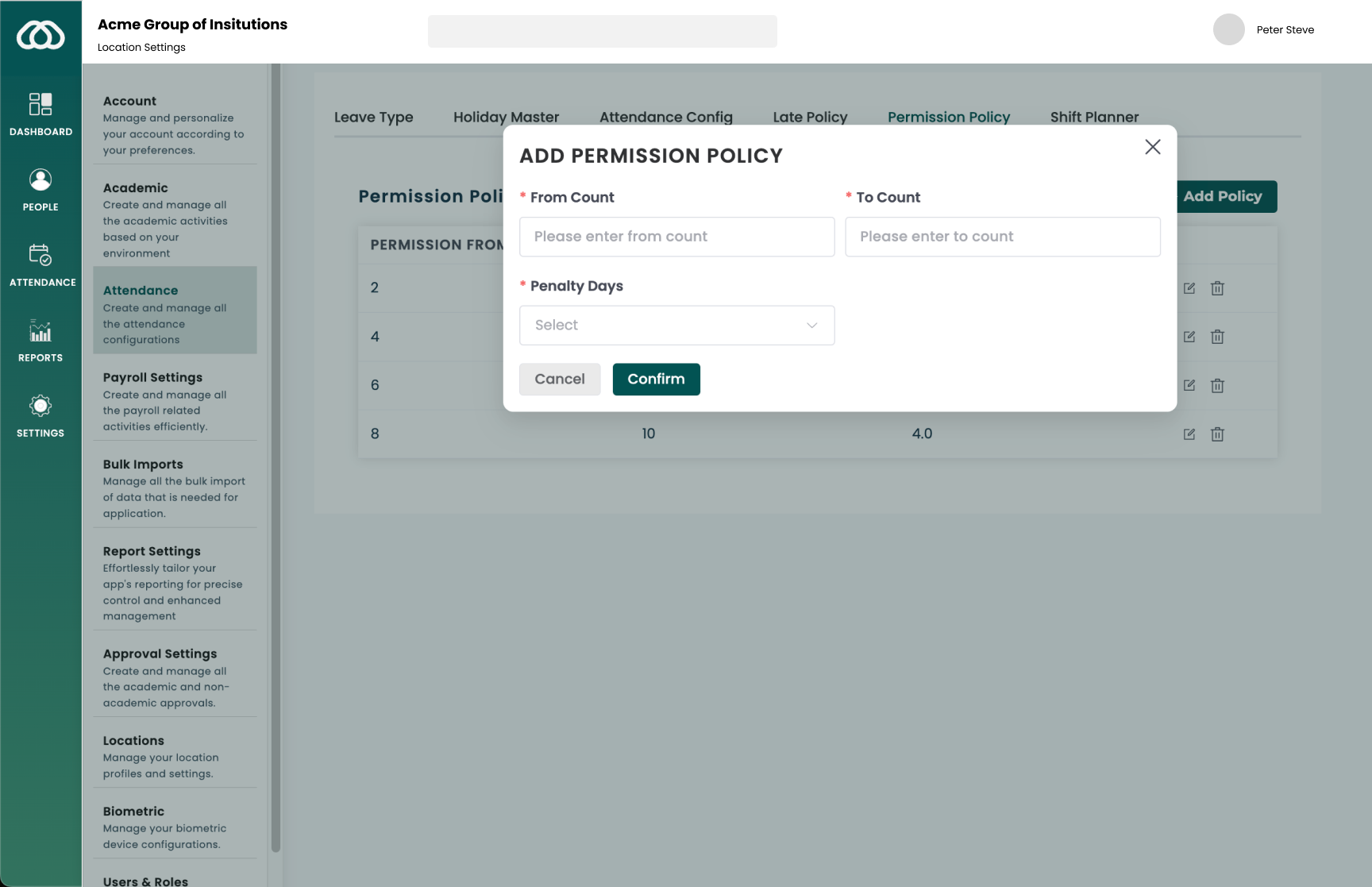
Late policy allows you to configure permission penality deductions based on employees permission frequency.
- Go to settings > Attendance > Permission Policy
- Click Add Policy
- Fill the required fields like from count, to count, penality days
- Click Confirm
Shift Planner
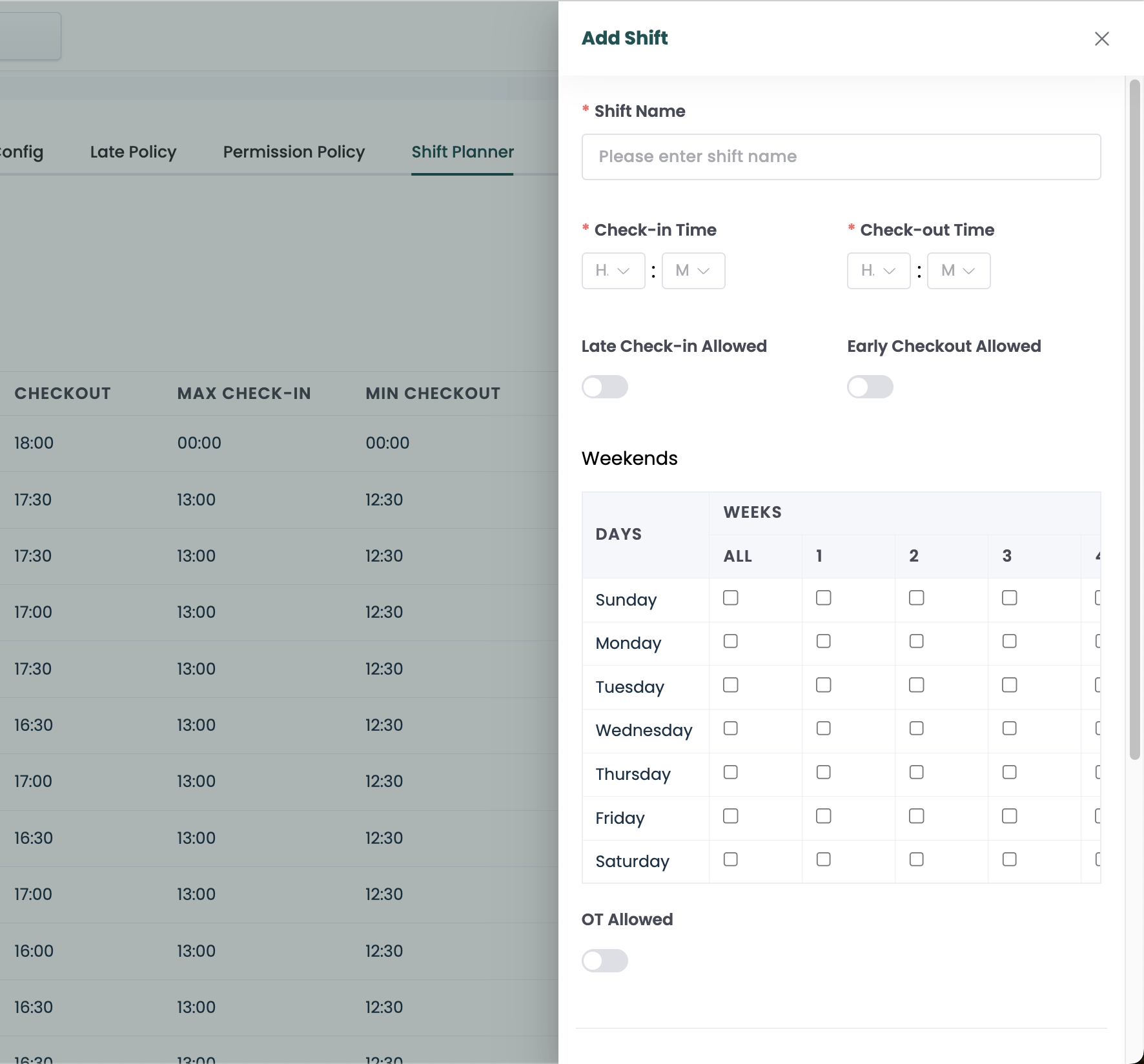
Shift planner allows you to create standard shifts that will be mapped to each employees for tracking attendance, the shifts can be more specific to an employee / department / designation.
- Go to settings > Attendance > Shift Planner
- Click Add Shift
- Fill the required fields like shift name, checkin time, checkout time etc..
- select weekends for the shift if needed, that will help to calculate working days etc..
- Click Confirm
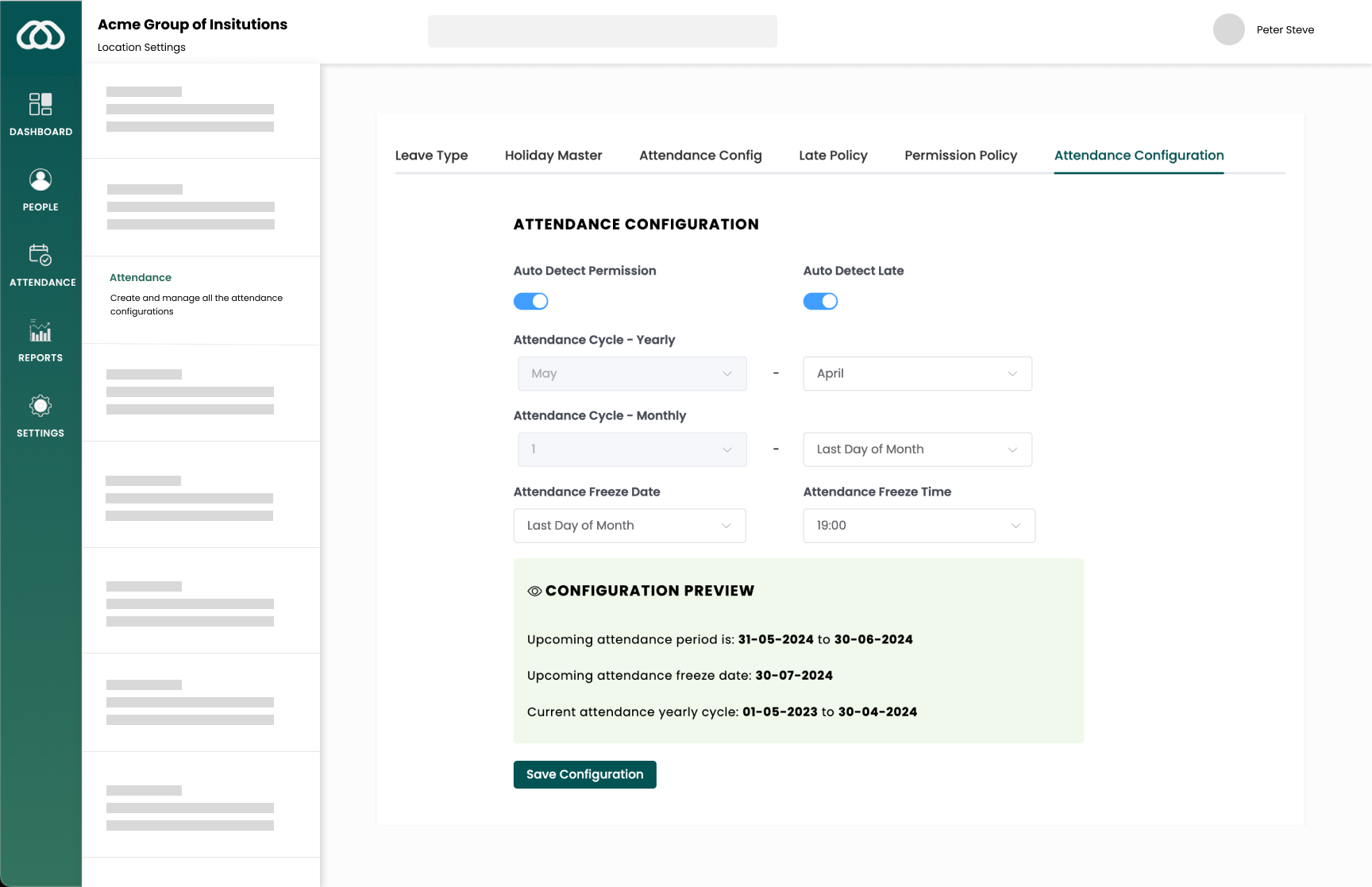
Attendance Configuration
Attendance configuration allows you to configure the overall attendance cycle, freeze dates, yearly cycle and auto detection of permission and late penalities.
- Go to settings > Attendance > Attendance Configuration
- Configure the settings based on your organization requirements and cycle it follows
- Click save configuration